> ## Documentation Index
> Fetch the complete documentation index at: https://docs.togai.com/llms.txt
> Use this file to discover all available pages before exploring further.
# Razorpay
Razorpay is a payments solution in India that allows businesses to accept, process and disburse payments with its product suite. This API guide will walk you through the steps to set up the integration, configure apps and flows, and enable automation for your business processes.
The integration between Razorpay and Togai requires only a one-time setup. Follow the steps below:
## Install
* Navigate to the Integrations section from the left navigation bar in Togai
* Click on `Apps` to access the list of apps with integration support
* Select `Razorpay` from the available apps
* Click on the `+Add connection` button
* Provide a name for the connection and paste your:
* `Key Id`
* `Key Secret`
### Key ID and Key Secret
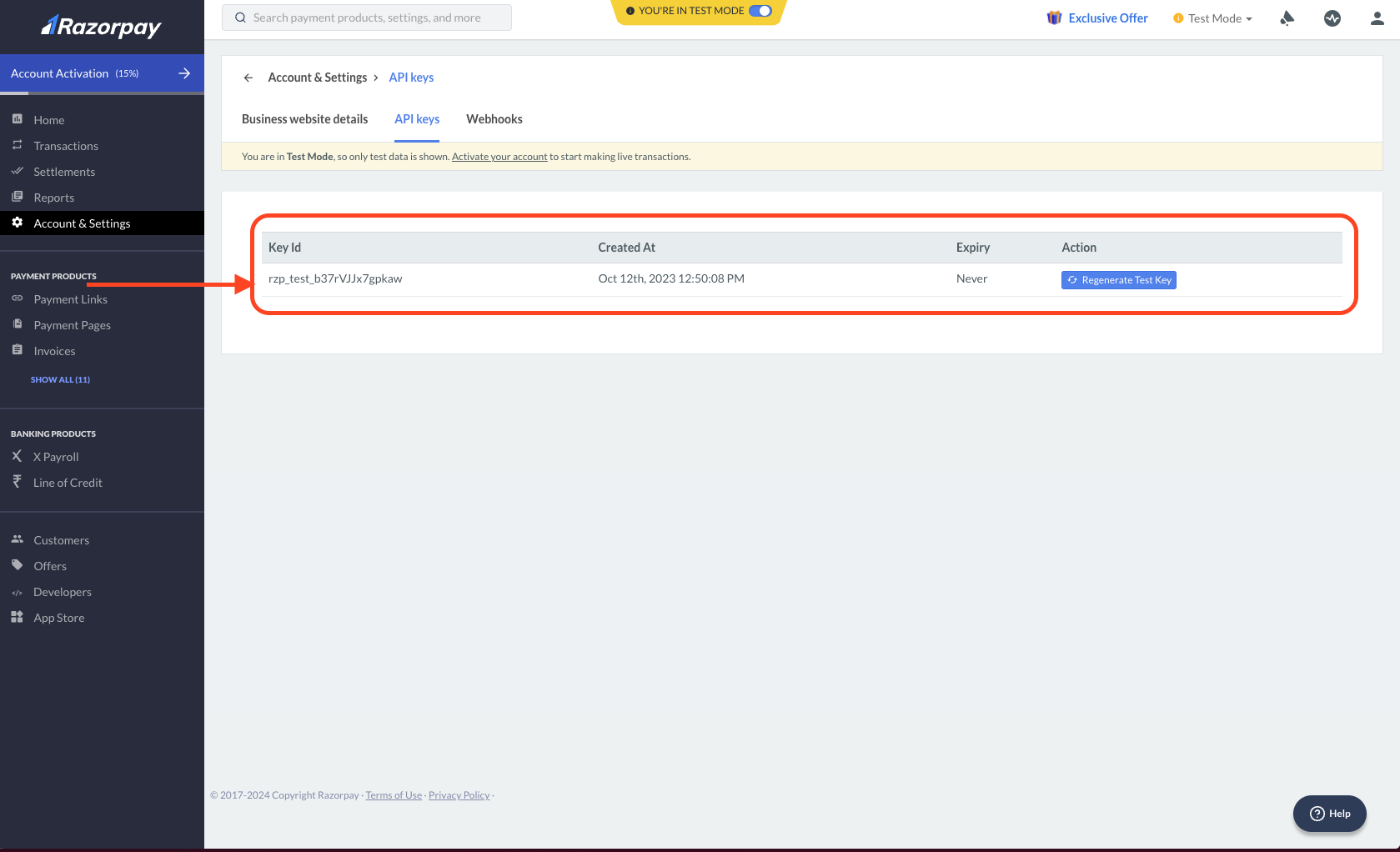 * Go to the Razorpay dashboard and click on the `Accounts & Settings` tab
* Click on `API Keys` to access your `Key ID` and `Key Secret`
* Copy and paste these keys in the respective fields in Togai
* For more information on how to generate your `Key ID` and `Key Secret`, refer to the [Razorpay documentation](https://razorpay.com/docs/payments/dashboard/account-settings/api-keys/)
## Flows
### 1. Sync accounts created from Togai to Razorpay
* A new account is created in Togai
* Togai then creates a corresponding customer in Razorpay and syncs the customer identifier between Togai and Razorpay.
* You can see this mapping of customer identifier in the Settings tab of every customer. The setting name for Razorpay customer identifier in Togai is `RazorPayCustomerId`.
### 2. Sync Togai invoices to Razorpay
* A new invoice is created in Togai
* Togai then creates a corresponding payment request on Razorpay using the setting `RazorPayCustomerId` for the customer on Razorpay.
* Caution: If the customer does not have a Razorpay customer identifier, the invoice will not be synced to Razorpay. You can see the Razorpay customer identifier in the Settings tab of every customer. The setting name for Razorpay customer identifier in Togai is `RazorPayCustomerId`.
### 3. Mark Togai invoice paid on RazorPay invoice paid
* Go to the Razorpay dashboard and click on the `Accounts & Settings` tab
* Click on `API Keys` to access your `Key ID` and `Key Secret`
* Copy and paste these keys in the respective fields in Togai
* For more information on how to generate your `Key ID` and `Key Secret`, refer to the [Razorpay documentation](https://razorpay.com/docs/payments/dashboard/account-settings/api-keys/)
## Flows
### 1. Sync accounts created from Togai to Razorpay
* A new account is created in Togai
* Togai then creates a corresponding customer in Razorpay and syncs the customer identifier between Togai and Razorpay.
* You can see this mapping of customer identifier in the Settings tab of every customer. The setting name for Razorpay customer identifier in Togai is `RazorPayCustomerId`.
### 2. Sync Togai invoices to Razorpay
* A new invoice is created in Togai
* Togai then creates a corresponding payment request on Razorpay using the setting `RazorPayCustomerId` for the customer on Razorpay.
* Caution: If the customer does not have a Razorpay customer identifier, the invoice will not be synced to Razorpay. You can see the Razorpay customer identifier in the Settings tab of every customer. The setting name for Razorpay customer identifier in Togai is `RazorPayCustomerId`.
### 3. Mark Togai invoice paid on RazorPay invoice paid
 * Togai receives an invoice paid event emitted from Razorpay
* Togai then marks the corresponding invoice as paid in Togai
* To enable this flow, you need to configure a webhook in Razorpay.
* Go to your Razorpay dashboard and click on the `Accounts & Settings` tab
* Navigate to the `Webhooks` section and click on `Add New Webhook`
* Togai receives an invoice paid event emitted from Razorpay
* Togai then marks the corresponding invoice as paid in Togai
* To enable this flow, you need to configure a webhook in Razorpay.
* Go to your Razorpay dashboard and click on the `Accounts & Settings` tab
* Navigate to the `Webhooks` section and click on `Add New Webhook`